Enquiry notices
An enquiry notice (avis d’enquête) is a matchmaking tool between a journalist preparing an investigation and the experts who can contribute to it. The journalist targets profiles, reaches out to them, gathers their answers, arranges meetings, and — after publication — sends them a proof of publication.
Enquiry notices are created and managed from Work › Newsroom › Avis d’enquête. Each one follows a five-step path, shown as a navigation bar: View → Edit → Target contacts → Manage answers → Manage meetings.
Journalist side
1. Create the notice
The form includes a title, a brief, the usual metadata (Genre, Heading, Theme, Sector), the media, and key dates (start, end, deadline, planned publication).
2. Target contacts
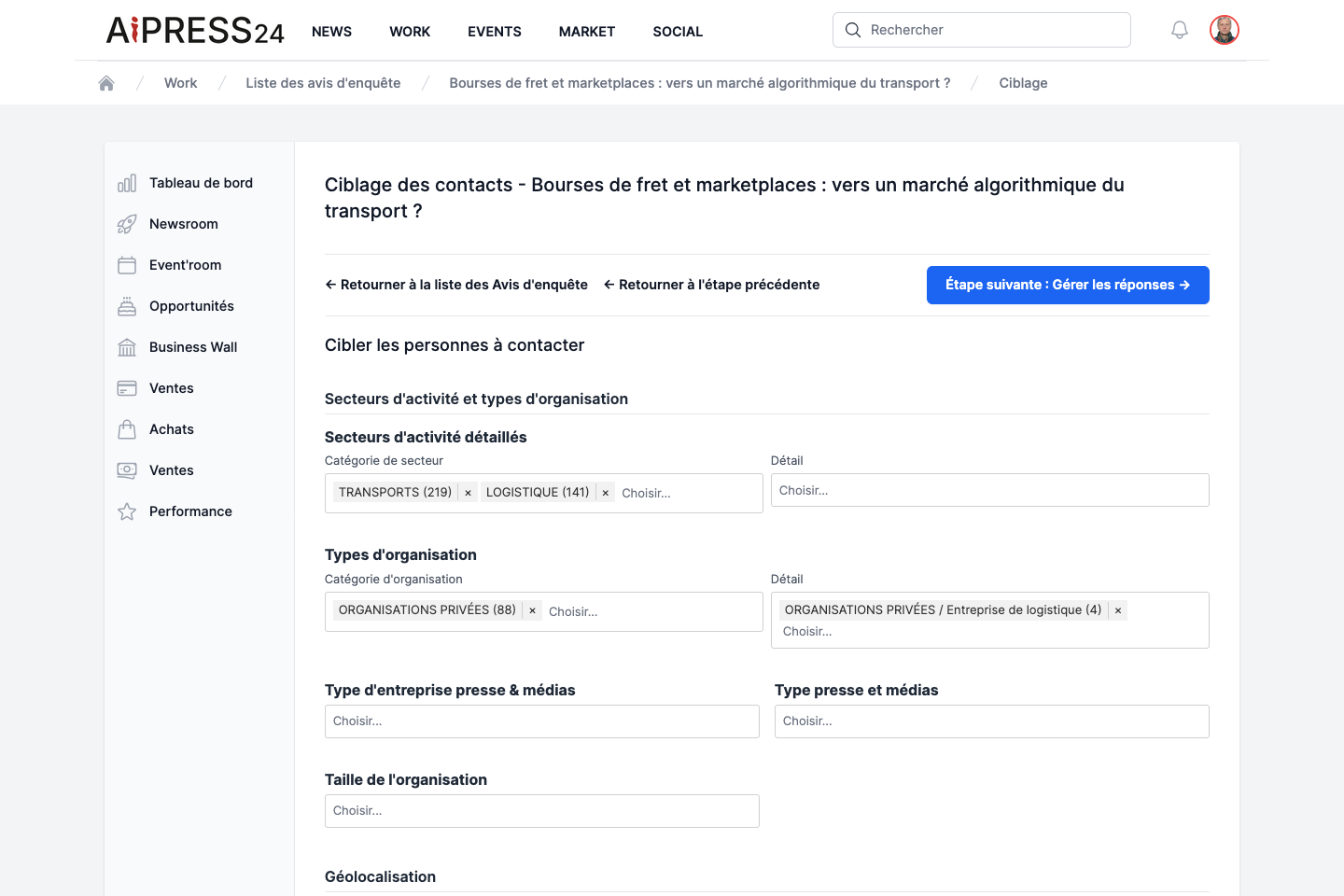
The “Cibler les contacts” (Target contacts) step helps you build the list of experts to reach out to. The platform pre-selects a pool of active experts whose sectors overlap those of the investigation, which you refine with many filters, grouped into four families:
- Sectors and organisation types — detailed sectors, organisation types, type of press & media company, organisation size.
- Geolocation — country, department, city.
- Roles — political/administrative roles, private-organisation roles, association & union roles, journalism roles.
- Occupations, skills & languages — occupation, general skills, journalism skills, languages.
Each option shows, in parentheses, the number of matching experts. The table of found profiles lets you tick those you want to contact, then “Valider / mettre à jour la sélection” (Confirm / update the selection). Once your selection is ready, click “Envoyer la demande” (Send the request) and confirm.
Anti-spam
To protect experts, a cap limits how many requests each person receives over a rolling period. Experts at the cap are automatically excluded from the send (a message tells you so).
When sent, each selected expert receives a notification and an email inviting them to answer.
3. Manage answers
The “Gérer les réponses” (Manage answers) step lists the answers received (contact, status, date, meeting state). Possible statuses: Pending, Accepted, Rejected, Rejected, suggestion, Confirmed.
For an expert who has accepted, you can propose a meeting.
4. Manage meetings
From the “Gérer les RDV” (Manage meetings) step, or from an accepted answer, propose a meeting:
- Type: phone, video call or in person.
- Slots: propose 1 to 5 slots (on weekdays, during working hours).
- Contact details depending on the type (phone number, video link, or address) and any notes.
The expert accepts one of the slots (or declines). You can then confirm the meeting, or cancel it. Each change notifies the other party. A meeting’s statuses: No meeting → Proposed → Accepted → Confirmed.
5. Proof of publication and remuneration
After your article is published, the Justificatif action (from the article) lets you notify the participants in the investigation: each receives a notification and an invitation to acquire the article’s proof of publication. You can also send a publication notification to the people quoted.
Each notified proof is counted (the “JdP notifiés” column in your notice list) and contributes to the remuneration of the journalist for completed investigations, funded by a mutualised pool (a share of Business Wall subscription revenues), paid through your outlet.
Expert side (answering a notice)
When a journalist reaches out to you, the notice appears in Work › Opportunities › Avis d’enquête (“Opportunité média”). The page shows the media, the title, the author, the dates and the brief.
Prerequisite
To answer an enquiry notice, your organisation must have an active Business Wall. Otherwise a banner invites you to set it up first.
To the question “Does this investigation concern you?”, four answers are possible:
- Yes — you explain how you can contribute.
- Yes, involving my press officer — you contribute and involve your organisation’s communication/PR lead.
- No — you say why.
- No, but I suggest a colleague — you point the journalist to a better-placed person in your organisation.
Click “Envoyer” (Send) and confirm. The journalist is notified of your answer.
If you accepted, the journalist will propose one or more meeting slots: pick the one that suits you (or decline). You then receive a confirmation.