Getting started on Aipress24
Registration
Registration is handled through a guided questionnaire (known as “KYC”, for Know Your Customer) that determines your community, your profile, your permissions and the public information on your card. From the home page, click “S’inscrire” (Register).
1. Choose your community and profile
You first indicate which professional community you belong to, then select the profile that matches you within that community. Aipress24 has five communities, each broken down into specific profiles. For example:
- Press & Media: news executive, journalist with/without a press card (employee, freelancer, or sole trader), institutional journalist, head of a journalists’ union…
- Communicators: PR agency director or consultant, independent PR consultant, communication-department director or consultant.
- Leaders & Experts: executive, in-house expert, independent expert, an organisation’s PR lead, investor, start-up founder, event organiser.
- Transformers: director or consultant in organisational transformation, innovation investor, head of a competitiveness cluster or incubator.
- Academics: institution director, journalism-school director, lecturer-researcher, PhD student, student, student-entrepreneur.
Your profile shapes the rest of the questionnaire, your community, and the Business Wall type that will be suggested to you.
2. Complete the questionnaire
The questionnaire is organised into successive sections:
- Personal information — identity, photo, main occupation, presentation, skills, languages, education, contact details (fields marked with
(*)are mandatory). - Your organisation — name, nature, type, size, sectors, address, press contact details.
- Matchmaking factors — your roles and interests, essential for targeting (enquiry notices, assignments).
- Hobbies & networking — interests and availability (meeting up, sharing a meal, hosting a fellow member).
- Business Wall — the option to activate the Business Wall subscription matching your profile.
- Terms and conditions — acceptance is required to complete registration.
Use “Précédent” (Previous) and “Suivant” (Next) to navigate; on the last section, “Valider” (Submit) sends your registration. A summary screen lets you review everything before submitting.
3. Validation
After submission, your account is created pending validation. It becomes usable once approved by the Aipress24 team. You then receive a confirmation email.
Freelance journalists
An editor-in-chief can sponsor you (and register their whole newsroom collectively) to smooth your arrival. Ask your editor for details.
Logging in
Once your account is validated, log in with your email address and password. By default you land on the News portal (or on your Dashboard if you are a journalist).
Finding your way around
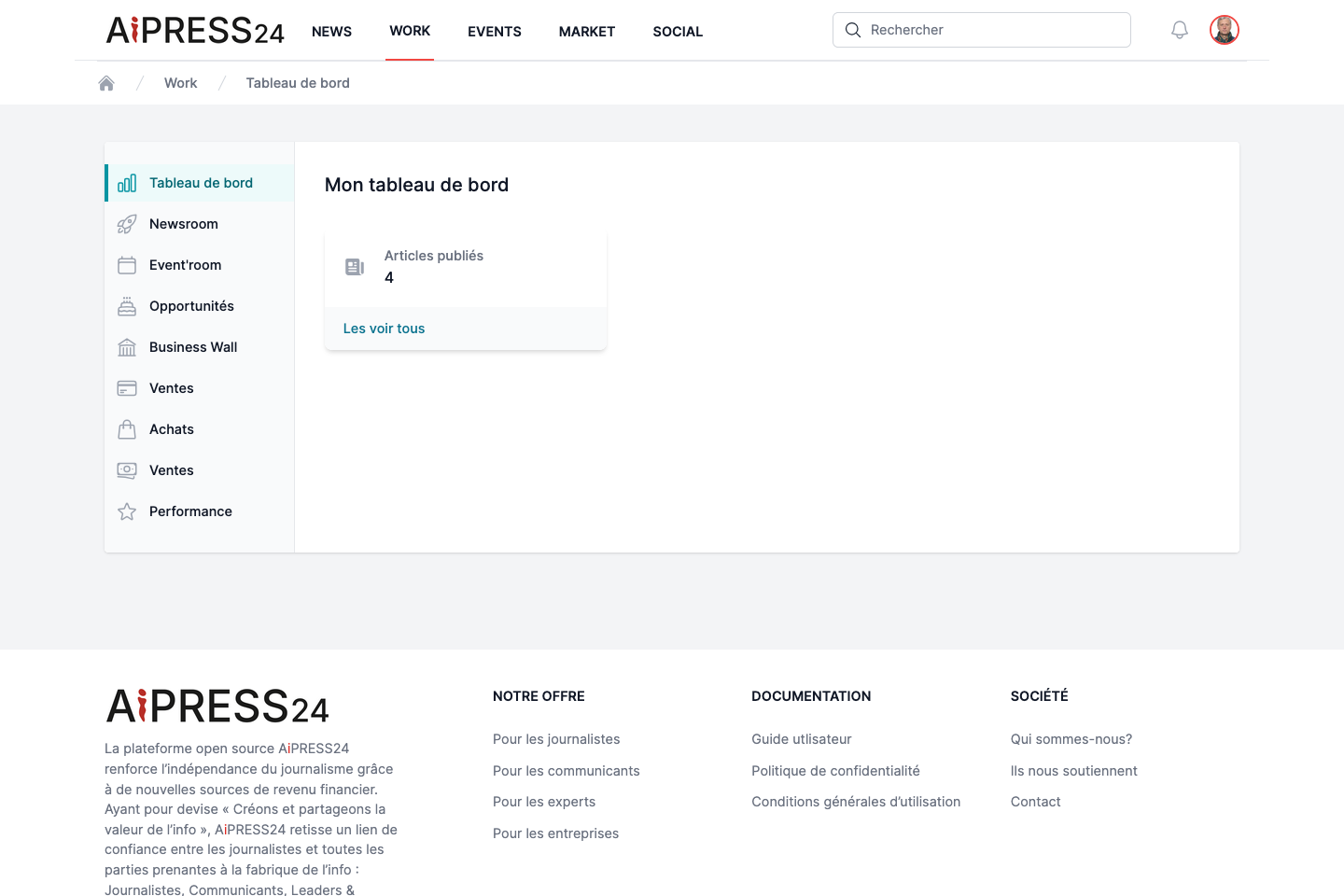
- The navigation bar at the top of the screen gives access to the portals: News, Social, Work, Marketplace, Events (Événements), Search (Rechercher).
- The bell icon shows your notifications (with an unread badge).
- Your name, top right, opens your preferences and profile settings.
Editing your profile
Complete and keep your profile up to date from Preferences › “Modification du profil” (Edit profile). Qualification, visibility and contact-detail privacy are covered in Your profile.